
Repeating nags allow you to send the same reminder email to users at regular intervals until they complete a course.
This is the most common reminder setup for mandatory training, where users should continue receiving reminders until the course is completed.
A typical repeating nag might be:
- First reminder — 14 days after enrolment
- Reminder repeated every 7 days
- Continue sending reminders until the course is completed
Step 1 — Select Alert Type
From the menu on the left-hand side of the page:
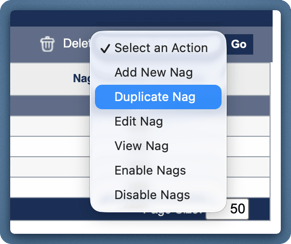
- Select Nagware
- Click Add New Nag
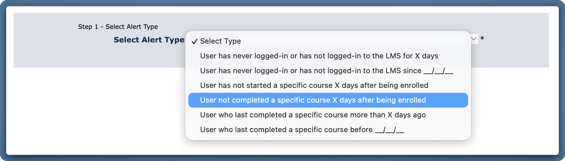
Under Select Alert Type, choose:
User not completed a specific course X days after being enrolled
This alert type automatically identifies users who have been enrolled on a course but have not completed it after a specified number of days.
Step 2 — Enter Details
This section defines which course the nag applies to and when the first reminder should be triggered.
Nag Name
Use a clear, descriptive name that makes the purpose of the nag easy to recognise later.
Good examples
- GDPR — Weekly Reminder
- Code of Conduct — Ongoing Reminder
- Anti-Money Laundering — Until Completed
Clear naming becomes especially important when managing multiple nags.
Number of Days
This setting controls how long after enrolment the first reminder should be sent.
Example
14
What this means
If a user has not completed the course within 14 days of being enrolled, the first reminder email will be sent automatically.
Select Course
Choose the course that the nag should monitor.
The nag will only apply to users enrolled on this specific course.
Important
If the wrong course is selected, reminders will not be sent to the intended users.
Step 3 — Sending Instructions
This section controls when reminders start, when they stop, and how often they are repeated.
These settings determine how persistent the reminders will be.
Start Date
This is the date the nag becomes active.
Best practice
Set the Start Date for tomorrow or later, never today.
Best practice
Set the Start Date for tomorrow or later, never today.
End Date
This is the date the nag will stop running.
Common approach
Set the End Date several years in the future.
This allows the nag to continue working automatically for future enrolments. Users will stop receiving reminders once they complete the course.
Number of Emails
This controls how many times the reminder email will be sent to each user.
Common configuration
Set this to a large number, such as: 100
This ensures users continue receiving reminders until they complete the course.
Alternative
If you want reminders to stop after a fixed number of attempts, you can set a smaller number, such as: 10
Interval
This controls how frequently reminder emails are sent.
Examples
7 → Send a reminder every 7 days
1 → Send a reminder every day
Typical configuration
Number of Emails — 100
Interval — 7
This would send one reminder every week until the user completes the course up to a total of 100 reminders.
Step 4 — Filter Recipients (Optional)
In most cases, you should leave this section blank.
If a course has been assigned to users, the nag will automatically be sent to anyone who has not completed the course.
When should filters be used?
Filters are useful when reminders should only be sent to a specific group of users, such as:
- Users in a particular office
- Users in a specific department
- Users included in a phased rollout
How to apply a filter
To add a filter:
- Select the field under Include
- Choose a Condition
- Select the Value
- Click Add
Important
The filter will not be applied unless you click Add.
If you need to change a filter after adding it, click Clear Conditions and create it again.
Step 5 — Email Details
This section defines the reminder email that users will receive.
A clear and helpful email makes it easier for users to complete their training quickly.
Email Sender’s Name
Enter the name that should appear as the sender.
Use a name that users will recognise, such as:
- Compliance Team
- HR Department
- Learning and Development
Email From
Enter the email address the reminder should be sent from.
This should usually be a monitored mailbox or shared team address.
Best practice
Avoid using personal email addresses where possible.
Email Subject Line
Keep the subject line clear and direct.
Examples
Training Reminder — Please Complete
Mandatory Training — Reminder
Outstanding Training — Action Required
Email Body
Write the message that users will receive.
The email should include enough information for the user to complete the course as soon as they receive it.
Always include
- The LMS login link
- The user’s username
- Instructions on how to reset their password
Recommended variables
You can use Insert Variable Data to insert useful fields such as:
— the LMS website address— the user’s username
Important
Avoid changing text inside curly brackets, as these are system variables.