
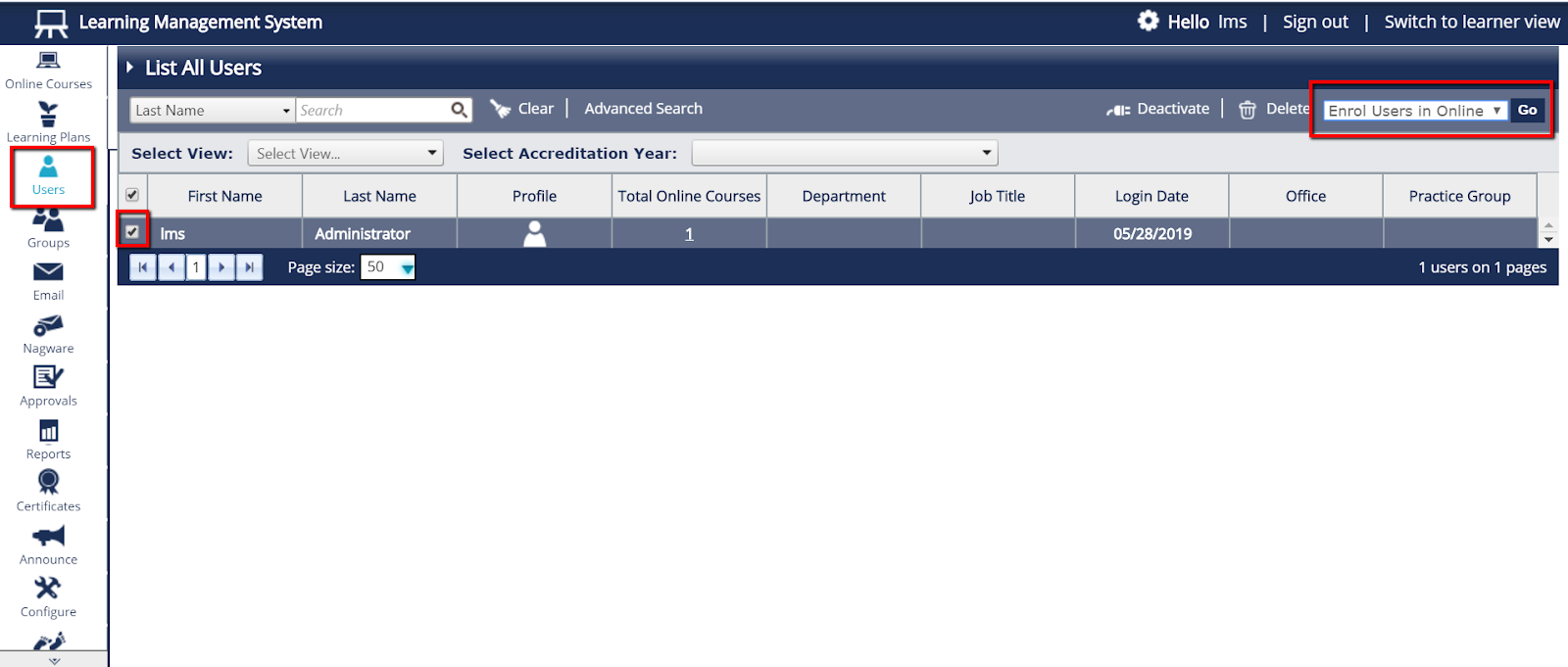
- From the menu on the left side of the page, select “Users” and then choose “List All Users”. Tick next to the specific user(s) or Select All to be enrolled.
- From the “Select An Action” dropdown menu in the upper right side of the page, choose “Enrol Users in Online Courses” and click “Go”.
- You can then tick the course(s) to enrol the user(s) in.
Please note: If the user was previously enrolled in a course, you have two options:
- Retain existing enrolments without re-enrolling users: they will NOT be allocated this course again now.
- Archive existing enrolments and re-enrol users: they will be allocated this course again now in a brand new session.
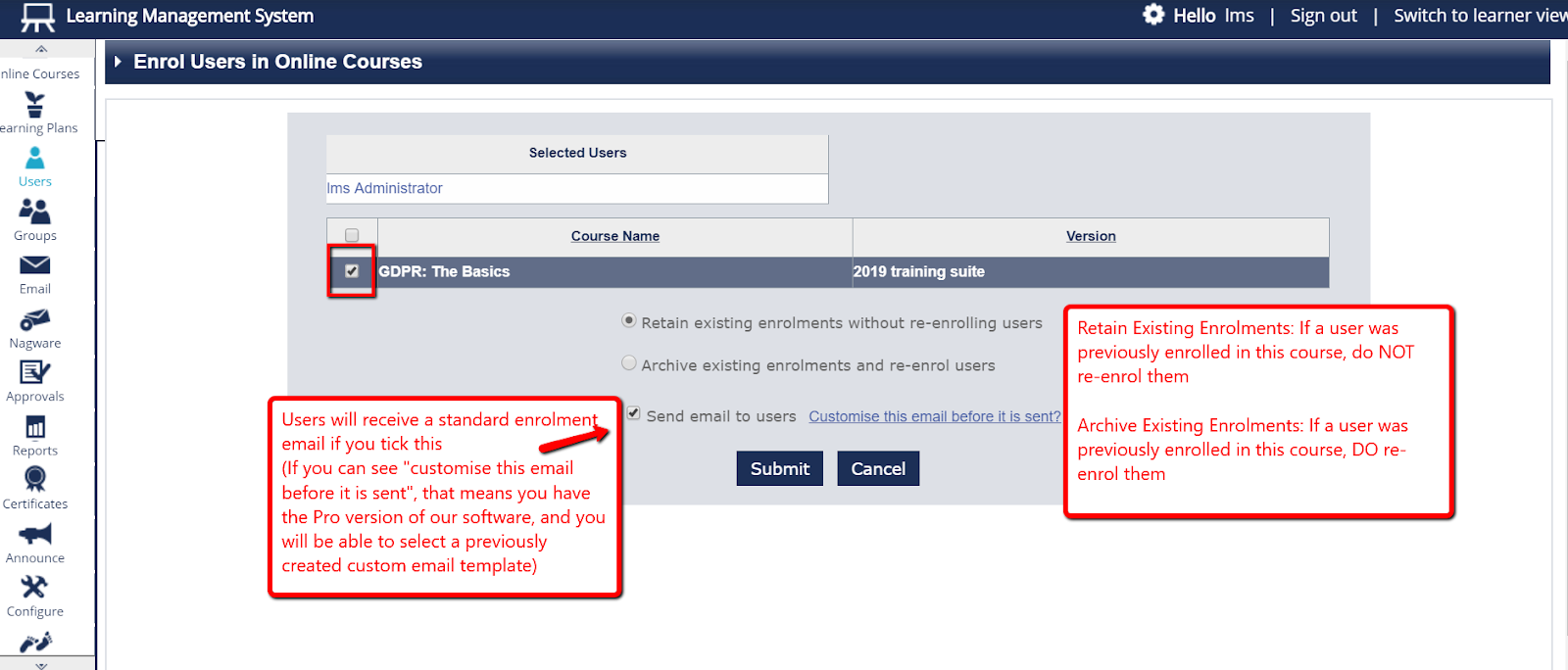
- If you would like users to receive a notification that they have course(s) to complete, you should tick “Send Email to Users” and then click the “Submit” button.
•If you can see “Customise this email before it is sent?”, that means you have the Pro version of our software, and you will be able to select a previously created custom email template.