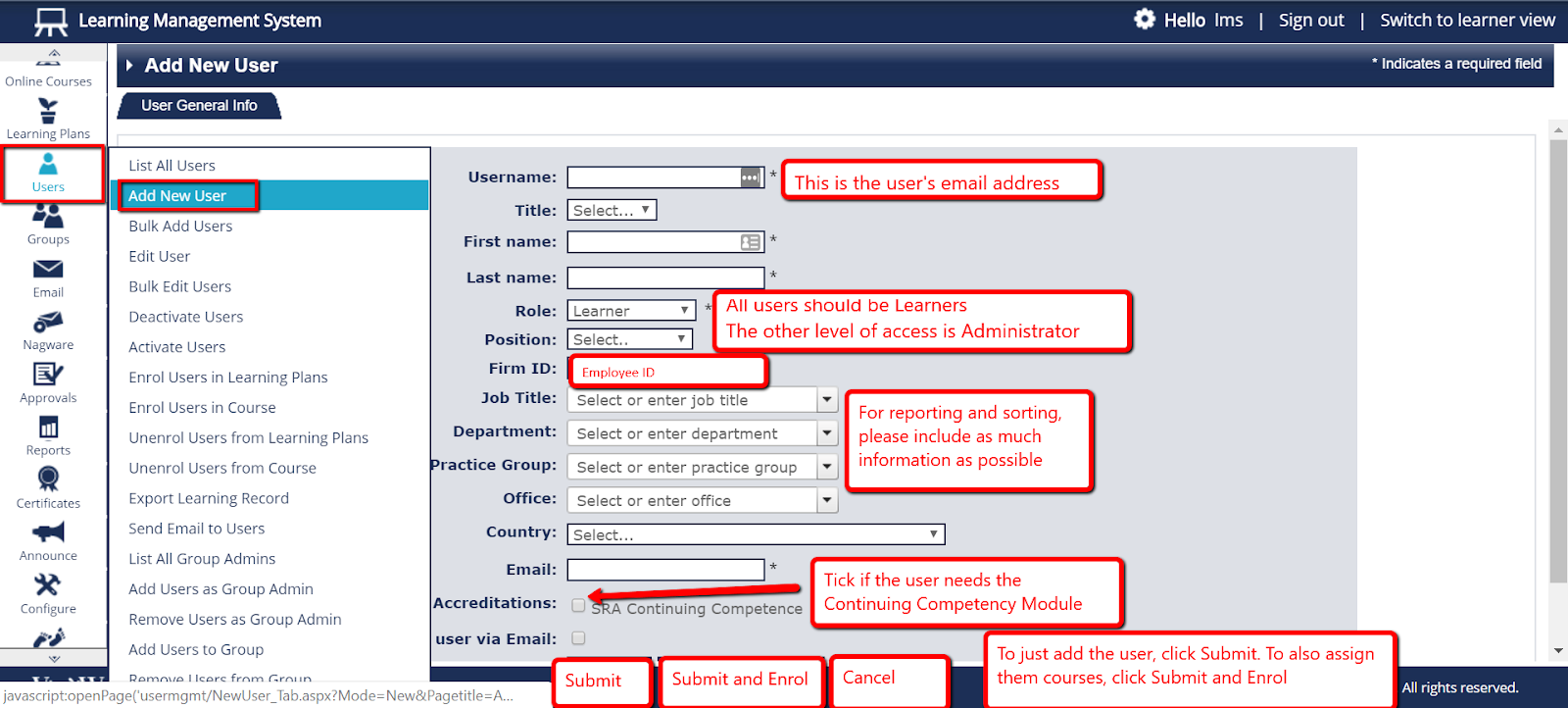
- From the menu on the left side of the page, select “Users”, then select “Add New User”.
- Fill in the relevant fields
- Username: This is the user’s email address
- Role: All users should be set as a “Learner”; the other level of access is “Administrator”
- Firm ID: A unique identifier for each user such as Employee ID
- Job Title, Department, etc: For reporting and sorting, it is advised to provide as much information as possible.
- Accreditations: Tick the “SRA Continuing Competence” box if the user needs the Continuing Competency Module. Tick the appropriate “HK CPD” or HK RME” is you have users that need that accreditation.
- To simply add the user without allocating any courses to them, choose “Submit”
- To immediately enrol the user in courses, select “Submit and Enrol.”