
Steps to Enrol a Group in a Course
- Navigate to the Groups List:
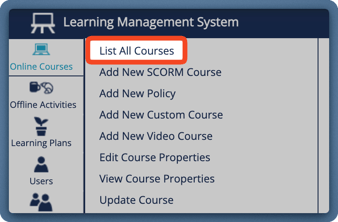
- Click "Groups" in the left menu
- Select "List All Groups"
- Click "Groups" in the left menu
- Select the Group:
- Tick the box next to the group you want to enrol
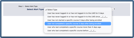
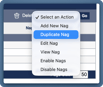
- In the top-right, choose "Enrol Groups in Online Courses" from the drop down
- Click "Go".
- Choose the Courses:
- Select the course(s) for enrolment
- Send Notifications (Optional):
- Tick "Send email to notify group users" to send an automatic email to all enrolled users.
- Tick "Send email to notify group users" to send an automatic email to all enrolled users.
- Enable Future User Enrolment (Optional)
- Tick "Enrol future users who are dynamically added to this Group."
- If selected, another option appears:
- Tick "Send enrolment emails to notify future group users" to ensure new users receive an email when enrolled.
- Click "Submit" to finalise the enrolment.
You should now be able to:
- Enrol multiple users at once.
- Automate enrolment for future group members.
- Ensure users receive notifications about their new courses.
Please note that Groups are a feature of VinciWorks LMS Professional.
If you do not see the option, please reach out to your Account Manager to discuss your needs.