
Groups allow you to organise users based on shared attributes such as country, role, or office location.
They are commonly used for:
- Assigning training to specific users
- Filtering reports
- Managing users at scale
- Applying rules or reminders to defined audiences
Groups are dynamic, meaning users are automatically included if they match the criteria you define.
Before you begin
Groups are a feature of VinciWorks LMS Professional.
If you do not see the Groups option in your menu, please contact your Account Manager to discuss enabling this feature.
Step 1 — Navigate to Groups
From the menu on the left-hand side of the page:
- Select Groups
- Click Add New Group
Step 2 — Define your first group profile
A group is made up of one or more profiles.
Each profile contains a set of criteria that users must match to be included.
Start by defining your first profile.
Example
To create a group of all users in Australia:
- Field: Country
- Condition: Equal To
- Value: Australia
This will include all users where Country is set to Australia.
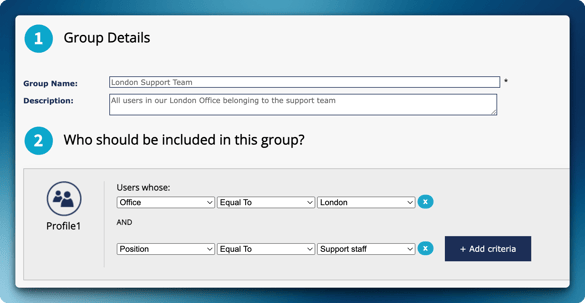
Step 3 — Add additional criteria (optional)
You can refine your group further by adding more criteria.
Click: Add Criteria
Each additional condition will narrow the group.
Example
To include only Australian Fee Earners:
- Country → Equal To → Australia
- Position → Equal To → Fee Earners
Only users matching both conditions will be included.
Step 4 — Add additional profiles (optional)
You can include multiple profiles within a single group.
This allows you to combine different sets of users.
Click: Add Member Profile
Each profile acts as an OR condition.
Example
Profile 1:
- Country → Equal To → Australia
- Position → Equal To → Fee Earners
Profile 2:
- Office → Equal To → London
- Position → Equal To → Support Staff
This group will include:
- Australian Fee Earners
OR - London Support Staff
Step 5 — Manually add users (optional)
If some users do not match your criteria but should still be included:
Tick: I want to add group members individually
You can then search for users and add them manually.
Step 6 — Save the group
Once all criteria and users are set:
Click: Save
Your group will now be created and will automatically update as users match the defined criteria.
How groups work
- Users are added automatically if they match the criteria
- Users are removed automatically if they no longer match
- Multiple profiles allow you to combine different audiences
- Manual users are always included, regardless of criteria
Groups are a feature of VinciWorks LMS Professional. If you don't see this option, please reach out to your Account Manager to discuss the options.