
Escalating nags allow you to send reminder emails to users who have not completed a course, with each reminder becoming more urgent over time.
Instead of sending the same reminder repeatedly, many organisations prefer to create multiple nags with different wording and timings. This helps reinforce the importance of completing mandatory training and can improve completion rates.
A typical escalation pattern might be:
- First reminder — 14 days after enrolment
- Second reminder — 21 days after enrolment
- Third reminder — 28 days after enrolment
However, each organisation may configure reminders differently depending on its internal policies.
Step 1 — Select Alert Type
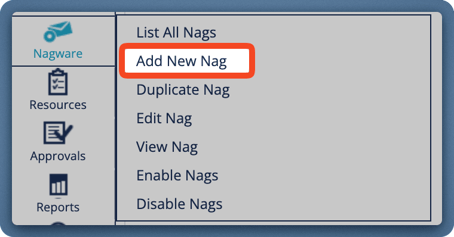
From the menu on the left-hand side of the page:
- Select Nagware
- Click Add New Nag
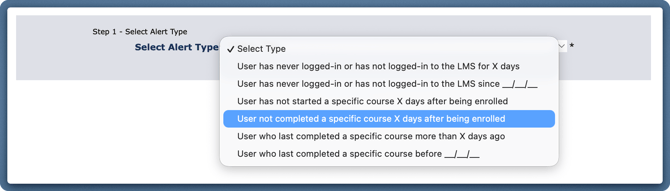
Under Select Alert Type, choose:
User not completed a specific course X days after being enrolled
This alert type automatically identifies users who have been enrolled on a course but have not completed it after a specified number of days.
Step 2 — Enter Details
This section defines which course the nag applies to and when the reminder should be triggered.
Nag Name
Use a clear, descriptive name that makes the purpose of the nag easy to recognise later.
Good examples
- GDPR — 14 Day Reminder
- Code of Conduct — Second Reminder
- Anti-Money Laundering — Final Reminder
Clear naming becomes especially important when managing multiple nags for the same course.
Number of Days
This setting controls how long after enrolment the reminder should be sent.
Example
14
What this means
If a user has not completed the course within 14 days of being enrolled, the reminder email will be sent automatically.
Tip
Each additional nag in an escalating sequence should usually use a higher number of days, for example 14 → 21 → 28.
Select Course
Choose the course that the nag should monitor.
The nag will only apply to users enrolled on this specific course.
Important
If the wrong course is selected, reminders will not be sent to the intended users.
Step 3 — Sending Instructions
This section controls when reminders start, when they stop, and how often they are sent.
These settings determine how persistent the nag will be, so it is important to review them carefully.
Start Date
This is the date the nag becomes active.
Best practice
Set the Start Date for tomorrow or later, never today.
End Date
This is the date the nag will stop running.
Common approaches
Set the same date as the Start Date
→ Sends the reminder once only
Set the End Date several years in the future
→ Keeps the reminder active for future enrolments
Most organisations choose the second option so the nag continues working automatically.
Number of Emails
This controls how many times the same reminder email will be sent to each user.
Example
10
What this means
The same reminder email will be sent up to 10 times unless the user completes the course.
Important
If you want reminders to become more urgent over time, create separate nags with different wording. This is what creates an escalating nag sequence.
Interval
This controls how frequently reminder emails are sent.
Example
7
What this means
A reminder email will be sent every 7 days until the maximum number of emails has been reached.
A common configuration is:
- Number of Emails — 3
- Interval — 7
This would send one reminder every 7 days for up to 3 reminders.
Step 4 — Filter Recipients (Optional)
In most cases, you should leave this section blank.
If a course has been assigned to users, the nag will automatically be sent to anyone who has not completed the course. This is the expected behaviour for most reminders.
When should filters be used?
Filters are useful when reminders should only be sent to a specific group of users, such as:
- Users in a particular office
- Users in a specific department
- Users included in a phased rollout
How to apply a filter
To add a filter:
- Select the field under Include
- Choose a Condition
- Select the Value
- Click Add
Important
The filter will not be applied unless you click Add.
If you select values but forget to click Add, the filter will not be used.
Editing filters
Filters cannot be edited directly once added.
To change a filter
Click Clear Conditions
Then create the filter again.
Step 5 — Email Details
This section defines the reminder email that users will receive.
A clear and helpful email makes it easier for users to complete their training quickly and reduces support requests.
Email Sender’s Name
Enter the name that should appear as the sender.
Use a name that users will recognise, such as:
- Compliance Team
- HR Department
- Learning and Development
Email From
Enter the email address the reminder should be sent from.
This should usually be a monitored mailbox or shared team address.
Email CC
Use this field if other recipients should receive a copy of the reminder.
Multiple email addresses can be separated using a semicolon.
Example
manager@company.com; hr@company.com
Email Subject Line
Keep the subject line clear and direct.
Examples
- Training Reminder — Action Required
- Mandatory Training — Please Complete
- Final Reminder — Training Overdue
Clear subject lines improve open rates.
Email Body
Write the message that users will receive.
The email should include enough information for the user to complete the course as soon as they receive it.
Always include
- The LMS login link
- The user’s username
- Instructions for resetting their password
Recommended variables
You can use Insert Variable Data to insert useful fields such as:
— the LMS website address— the user’s username
Important
Avoid changing text inside curly brackets, as these are system variables and editing them may cause problems.
Step 6 — Create Additional (Escalating) Nags
Once the first nag has been created, you can duplicate it to create additional reminders with more urgent wording.
How to duplicate a nag
- Go to Nagware
- Select List All Nags
- Tick the box next to the nag you created
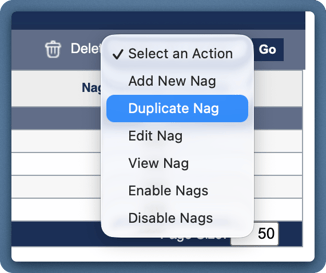
- Select Duplicate Nag from the Select An Action menu
- Click Go
The duplicated nag will be created in a disabled state.
Update the duplicated nag
After duplicating the nag:
- Change the Nag Name (for example, Second Reminder or Final Reminder)
- Increase the Number of Days
- Update the Email Subject Line and Email Body to reflect greater urgency
All other settings can usually remain the same.
Enable the nag
Once editing is complete:
- Tick the box next to the duplicated nag
- Select Enable Nags
- Click Go
Repeat this process to create as many escalation steps as required.